Teachers need to match technology with their teaching goals for the best classroom results. To choose interactive whiteboards, start by looking at your budget, classroom size, student age, and curriculum needs. A good fit helps lessons run smoothly and keeps students engaged.
Interactive Whiteboards Overview
What Are Interactive Whiteboards
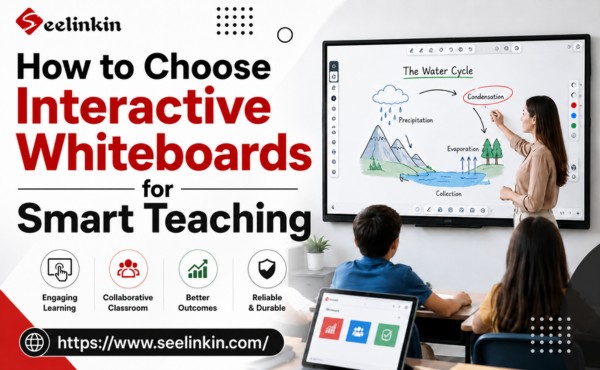
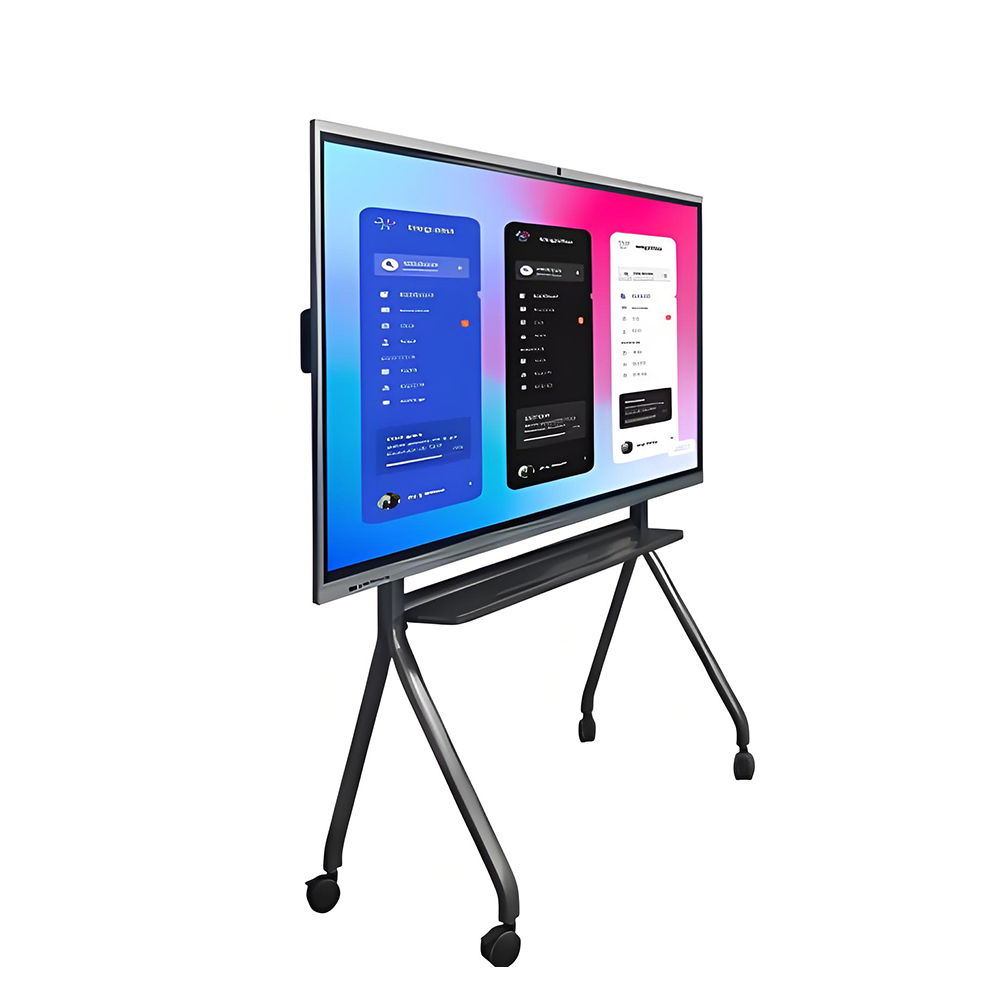
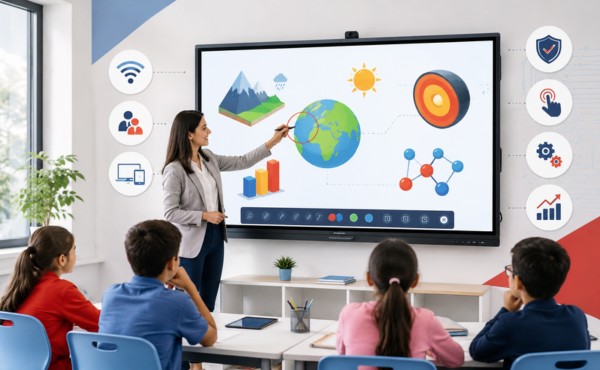
Interactive whiteboards are digital boards that connect to computers or other devices. These boards let teachers and students write, draw, and move objects on a large touch screen. The best electronic whiteboard can display images, videos, and websites, making lessons more dynamic.
Many classrooms use the best electronic whiteboard to replace traditional chalkboards. These boards respond to touch from a finger or stylus. Teachers can save notes and share them with students after class.
Classroom Benefits
The best electronic whiteboard helps teachers present information in new ways. Students can interact with lessons by solving problems or answering questions on the board. This hands-on approach keeps students interested and focused.
Teachers use the best electronic whiteboard to show videos, play audio, and display interactive maps. These features support different learning styles. Visual learners benefit from images, while audio learners gain from sound clips.
- The best electronic whiteboard encourages group work.
- Students can work together on projects at the board.
- Teachers can quickly switch between activities.
How They Work
The best electronic whiteboard connects to a computer or tablet. It uses special software to display content and track touch input. When someone touches the board, the software records the movement and responds right away.
Some models use projectors, while others have built-in screens. The best electronic whiteboard often supports both wired and wireless connections. Teachers can use USB drives, Wi-Fi, or Bluetooth to share files.
| Feature | Benefit |
|---|---|
| Touch screen | Easy to use for all ages |
| Save and share notes | Helps with review and homework |
| Multimedia support | Makes lessons more engaging |
Interactive whiteboards make teaching more flexible. The best electronic whiteboard allows teachers to adapt lessons quickly. Students get more chances to participate and learn in different ways.
Choose Interactive Whiteboards: Key Factors
Budget Considerations
Budget plays a major role when you choose interactive whiteboards. Schools must look at the total cost, which includes the board, software, and installation. Some interactive whiteboards need extra accessories, so it is important to plan for these expenses.
A higher price does not always mean better classroom productivity. Teachers should compare features and see which options fit their needs. Many schools find that a mid-range model offers good value and supports collaboration.
Classroom Size
Classroom size affects how you choose interactive whiteboards. Large rooms need bigger screens so all students can see clearly. Small classrooms may work well with compact boards.
A table can help compare board sizes for different classroom types:
| Classroom Size | Recommended Board Size |
|---|---|
| Small | 55-65 inches |
| Medium | 65-75 inches |
| Large | 75 inches or more |
Choosing the right size helps boost collaboration and ensures every student can participate. The right fit also supports better classroom management.
Student Age
Student age matters when you choose interactive whiteboards. Younger students need simple interfaces and easy login methods. Older students can handle more advanced features and software.
Interactive whiteboards with multi-touch support help younger children work together. Older students may use more complex tools for collaboration and group projects. The right board can improve productivity and make lessons more engaging for every age group.
Curriculum Needs
Curriculum needs shape the way interactive whiteboards support classroom learning. Different subjects require different features. For example, math classes may need precise drawing tools, while language arts benefit from annotation and text editing.
Teachers should review the curriculum before choosing a board. Science classes often use simulations and videos, so strong multimedia support is important. History lessons may need easy access to maps and timelines.
Interactive whiteboards with subject-specific software can make lessons more effective. Some boards allow teachers to import lesson plans or access a library of teaching resources. This saves time and helps align technology with learning goals.
A table can help match curriculum needs to board features:
| Subject | Useful Features |
|---|---|
| Math | Drawing tools, graphing apps |
| Science | Video playback, simulations |
| Language Arts | Annotation, text editing |
| History | Maps, timeline tools |
| Art | Multi-touch, color palettes |
Interactive whiteboards should adapt to changing curriculum standards. Boards that update software regularly stay useful for many years. Flexibility helps teachers adjust to new teaching methods and content.
Interactive whiteboards also support project-based learning. Students can present research, display visuals, and collaborate in real time. This approach builds skills for future learning and teamwork.
Features of the Right Interactive Whiteboard
Connectivity Options
Wireless and Wired
The right interactive whiteboard offers both wireless and wired connections. Wireless options allow teachers to move freely and share content from anywhere in the classroom. Wired connections provide stable performance and reliable data transfer.
Many boards support Wi-Fi and Bluetooth. Wired connections often use HDMI or USB ports. Both methods ensure that the board can display content quickly and without delay.
Device Compatibility
Device compatibility is important for classroom flexibility. The right interactive whiteboard connects to laptops, tablets, and smartphones. Teachers can display lessons from different devices.
A table shows common device compatibility:
| Device Type | Connection Method | Supported Features |
|---|---|---|
| Laptop | HDMI, USB, Wi-Fi | Full display, control |
| Tablet | Wi-Fi, Bluetooth | Touch, display |
| Smartphone | Wi-Fi, Bluetooth | Quick display, sharing |
Compatibility allows students to share their work. Teachers can display student projects and group activities. This feature supports collaboration and interactive learning.
Touch Technology
Multi-Touch
Multi-touch technology lets several users interact with the board at the same time. Students can work together on math problems or art projects. Teachers can display multiple tasks and switch between them easily.
Multi-touch improves group work. It allows students to solve problems side by side. The board can display different tools for each user.
Stylus vs. Finger
Interactive whiteboards respond to both stylus and finger input. A stylus offers precision for drawing and writing. Fingers are best for quick navigation and simple tasks.
Some boards allow teachers to display handwriting and sketches with a stylus. Students can use their fingers to move objects or select answers. Choosing the right input method depends on lesson goals.
Audio and Display
Speakers
Built-in speakers help teachers play audio clips and videos. Good speakers make lessons more engaging. Students can listen to music, speeches, or science experiments.
Speakers should provide clear sound. The right interactive whiteboard supports volume control and audio playback. Teachers can display multimedia content without extra equipment.
Screen Quality
Screen quality affects how well students see the board. High-resolution screens display text, images, and videos clearly. Brightness and color accuracy help students focus on lessons.
A table compares screen features:
| Feature | Benefit |
|---|---|
| High resolution | Sharp display of content |
| Brightness | Easy to see in any lighting |
| Color accuracy | True-to-life display |
Teachers need a board that can display lessons without glare or distortion. The right interactive whiteboard ensures every student can see and understand the material. Good screen quality supports visual learning and keeps students engaged.
Software Integration
Teaching Apps
Teaching apps help make interactive whiteboards more useful. These apps let students practice math, write stories, or explore science topics. Many apps include games, quizzes, and drawing tools.
A good interactive whiteboard supports a wide range of teaching apps. This allows teachers to choose the best tools for their lessons. Some apps help with group work, while others focus on individual learning.
A table can show how teaching apps support different subjects:
| Subject | Example App Feature |
|---|---|
| Math | Interactive graphing |
| Science | Virtual labs |
| Language Arts | Story writing tools |
| Art | Drawing and painting |
Teaching apps can make lessons more fun and help students learn in different ways.
Cloud Access
Cloud access lets teachers and students save and share work online. This means you can open lessons from any device with internet access. Cloud storage also keeps files safe and easy to find.
Interactive whiteboards with cloud access support teamwork. Students can work on projects together, even if they are not in the same room. Teachers can send homework or notes to students quickly.
A list of cloud access benefits:
- Easy sharing of lesson materials
- Safe backup of important files
- Access from home or school
Cloud access makes it simple to use digital resources every day.
Types of Interactive Whiteboards
Interactive whiteboards come in several types. Each type fits different classroom needs and setups. Understanding these types helps schools make smart choices.
Standalone Boards
Standalone boards work without needing a constant connection to a computer. These boards have built-in software and storage. They often include touch screens and allow users to write, draw, and save work directly.
Many standalone boards support USB drives for file sharing. They are easy to move between classrooms. Some models have rechargeable batteries, which makes them portable.
Connected Boards
Connected boards link to computers, tablets, or networks. They display content from other devices in real time. These boards often use Wi-Fi, Bluetooth, or wired connections.
Connected boards allow teachers to share lessons from their laptops. Students can also connect their devices to show their work. This type supports group activities and interactive lessons.
A table shows the main features:
| Feature | Benefit |
|---|---|
| Device sharing | Easy collaboration |
| Real-time updates | Quick lesson changes |
| Remote access | Use from different rooms |
Connected boards often update software through the internet. This keeps tools and apps current. They work well in schools with strong network support.
Projection Models
Projection models use a projector to display images on a touch-sensitive surface. There are two main types: front projection and rear projection. Front projection places the projector in front of the board, while rear projection puts it behind.
Front projection models are common in many schools. They are easy to set up and cost less than some other types. Rear projection models reduce shadows and glare, which helps students see the board clearly.
A list of projection model benefits:
- Large display for big classrooms
- Works with many software types
- Can be used on different surfaces
Projection models fit well in lecture halls and large learning spaces. They support both group and individual activities.
Matching Boards to Teaching Needs
Subject Requirements
Different subjects need different features from interactive whiteboards. Science classes often use simulations and videos to explain concepts. Math lessons may require precise drawing tools for graphs and equations.
Language arts teachers benefit from annotation tools and text editing. Art classes need boards with multi-touch and color options. A table can help match subjects to board features:
| Subject | Needed Features |
|---|---|
| Science | Video, simulation support |
| Math | Drawing, graphing tools |
| Language Arts | Annotation, text editing |
| Art | Multi-touch, color palettes |
Classroom Setup
Classroom layout affects how well a board works. Large rooms need bigger boards so everyone can see. Small classrooms may use compact boards that fit limited wall space.
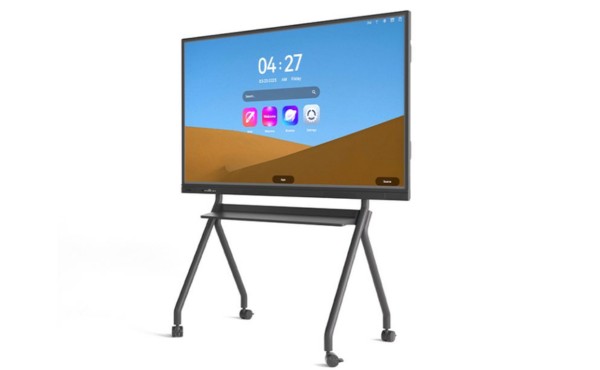
Consider where students will sit and how they will interact with the board. Boards with adjustable height help younger students reach the screen. Movable boards can support flexible seating and group work.
- Place the board where all students have a clear view.
- Make sure there is enough space for group activities.
- Check that the board does not block windows or doors.
Technology Integration
Interactive whiteboards should work with other classroom technology. Boards that connect to laptops, tablets, and the internet offer more options. Teachers can share lessons from different devices and update content quickly.
Cloud access lets students save and share their work. This supports teamwork and remote learning. Boards that support teaching apps allow for a wider range of activities.
A well-matched board increases student engagement and supports different teaching styles. The right choice helps teachers create a modern classroom that adapts to new methods and tools.
Impact on Smart Teaching
Lesson Delivery
Interactive whiteboards change the way teachers deliver lessons. These boards allow teachers to present information using videos, images, and interactive activities. Lessons become more visual and hands-on, which helps students understand new ideas.
Teachers can switch between different types of content quickly. This flexibility supports engaging lessons and keeps the class focused. Interactive tools also help teachers check for understanding during the lesson.
Student Engagement
Student engagement increases when interactive whiteboards are used in the classroom. Students can come up to the board and take part in activities. This active participation makes learning more interesting.
Many boards support group work and class discussions. Students can solve problems together or share their ideas with the class. These activities help improve student outcomes by making learning more meaningful.
- Students answer questions on the board.
- Groups work together on projects.
- Teachers use games and quizzes to boost student engagement.
Student engagement also grows when students see their work displayed for everyone. This builds confidence and encourages more participation. Teachers notice that students pay attention longer and ask more questions.
Learning Styles
Interactive whiteboards support different learning styles. Visual learners benefit from images, charts, and videos. Auditory learners gain from listening to audio clips or recorded lessons.
Kinesthetic learners enjoy using the board to draw, move objects, or solve puzzles. Teachers can plan activities that match each learning style. This approach helps improve student outcomes for all students.
A table shows how interactive whiteboards support learning styles:
| Learning Style | Board Feature |
|---|---|
| Visual | Images, videos, diagrams |
| Auditory | Audio clips, recordings |
| Kinesthetic | Touch, drawing, movement |
Interactive whiteboards make it easier for teachers to reach all students. Lessons become more flexible and personalized. This leads to better outcomes and a more positive classroom experience.
Conclusion
Choosing the right interactive whiteboard involves careful planning. Teachers should review classroom size, student age, and curriculum needs before making a decision. Focus on features that match your teaching style and check for easy setup and strong support.