Skip to content
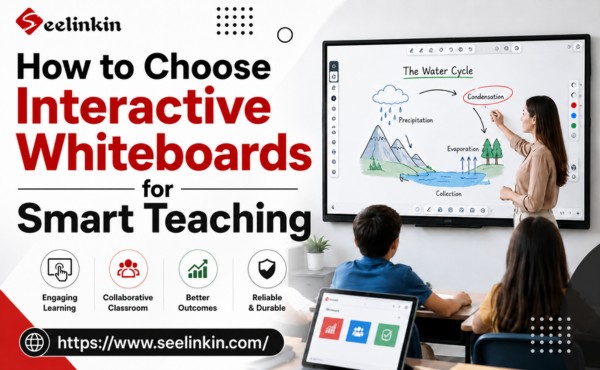
Interactive whiteboards are transforming classrooms and workplaces by enabling more engaging, collaborative, and efficient communication. This Interactive Whiteboard Guide explores the key features, benefits, and practical uses of modern interactive displays. Understanding how they work and where they add value can help educators and businesses make smarter technology decisions. In this article, we break down everything you need to know before choosing the right solution.

Understanding Interactive Whiteboards
What Is an Interactive Whiteboard
An interactive whiteboard is a digital tool that allows users to write, draw, and interact with content on a large screen. It responds to touch or pen input, making it easy to share ideas and information. The interactive whiteboard guide explains how these devices help people work together in classrooms and offices.
Many interactive whiteboards connect to computers or tablets. This connection lets users display documents, images, and videos. Teachers and business leaders use these boards to make lessons and meetings more engaging.
How Interactive Whiteboards Work
Interactive whiteboards use sensors to detect touch or pen movements. The screen displays digital content, and users can write or draw directly on it. Some boards allow multiple people to interact at the same time.
The interactive whiteboard guide shows that these devices often include software for annotation, collaboration, and sharing. Users can save their work, send files, or access cloud storage. This technology helps groups brainstorm, solve problems, and organize information.
- Interactive whiteboards can connect wirelessly or with cables.
- Many models support audio and video playback.
- Users can access apps and tools built into the system.
Types of Interactive Whiteboards
The interactive whiteboard guide highlights three main types of boards. Each type offers unique features for different environments.
Touch-Based
Touch-based interactive whiteboards respond to finger taps and gestures. Users can move objects, write notes, or draw shapes. These boards are popular in schools because they are easy to use.
Pen-Based
Pen-based interactive whiteboards use a special stylus for input. The pen allows for precise writing and drawing. Artists and designers often prefer this type for detailed work.
- Pen-based boards can detect pressure and angle.
- They offer advanced annotation tools.
Hybrid Models
Hybrid interactive whiteboards combine touch and pen input. Users can switch between finger gestures and stylus use. This flexibility makes hybrid models suitable for both education and business.
The interactive whiteboard guide suggests hybrid boards for teams that need versatile tools. These models support collaboration and creativity.
The interactive whiteboard guide helps readers understand the basics of these devices. It explains how they work and what types are available. This knowledge prepares users to choose the right interactive whiteboard for their needs.
Key Features of Interactive Whiteboards
Multi-Touch and Collaboration
Multi-touch capability stands out as one of the most important features of interactive whiteboards. This technology allows several users to interact with the board at the same time. Students or team members can write, draw, and move objects together, which encourages group work and active participation.
Collaboration becomes easier when everyone can contribute directly on the screen. Teachers can invite students to solve problems together, while business teams can brainstorm ideas in real time. These features help create a dynamic and engaging environment.
Annotation Tools
Annotation tools are essential features that let users write, highlight, and draw over any displayed content. These tools help explain ideas, mark important points, and make lessons or meetings more interactive. Users can add notes to documents, images, or web pages with just a few taps or strokes.
Some interactive whiteboards offer a variety of pen colors, shapes, and erasers. This variety allows users to organize information visually and keep the board clear. Annotation features also let users save their work for future reference or share it with others.
Wireless Sharing
Wireless sharing is another key feature that supports seamless integration with other devices. Users can connect laptops, tablets, or smartphones to the whiteboard without cables. This feature makes it simple to display presentations, documents, or videos from anywhere in the room.
Wireless sharing features help save time and reduce clutter. Teachers can quickly switch between student devices, and business teams can present ideas without technical delays. These features also support remote participation, allowing users to share content from different locations.
Built-In Apps
Many interactive whiteboards come with built-in apps. These apps help users perform tasks like drawing, note-taking, and web browsing directly on the board. Some boards include calculators, timers, and educational games.
Built-in apps make lessons and meetings more interactive. Teachers can use quiz apps to check understanding. Business teams can use mind-mapping tools to organize ideas.
Multimedia Integration
Interactive whiteboards support multimedia integration. Users can display images, play videos, and listen to audio files on the board. This feature helps make presentations and lessons more engaging.
Multimedia integration allows teachers to show science experiments or historical events with video clips. Business teams can use charts, graphs, and animations to explain data. Users can switch between different types of media with a few taps.
- Multimedia integration supports many file formats.
- Users can connect cameras or microphones for live demonstrations.
Cloud and File Access
Cloud and file access is a key feature for modern interactive whiteboards. Users can open documents, presentations, and images stored in cloud services. This makes it easy to share and update files from anywhere.
Teachers can prepare lessons at home and access them in the classroom. Business teams can work on shared documents during meetings. Users can save their work to the cloud for future use.
Security Features
Security features protect users and information on interactive whiteboards. These tools help keep lessons, meetings, and files safe from unwanted access.
Most interactive whiteboards offer password protection. This feature stops unauthorized people from using the board or changing settings. Some boards also use user accounts to control who can access certain files.
Data encryption is another important security feature. Encryption scrambles information so only approved users can read it. This helps keep private documents and student records safe.
Many boards include network security tools. These tools block harmful software and prevent hackers from reaching the system. Regular software updates also fix security problems and add new protections.
Some interactive whiteboards let teachers or managers control what users can do. For example, they can block internet access or limit which apps students can open. These controls help keep everyone focused and safe.
A table below shows common security features and their benefits:
| Security Feature | What It Does |
|---|---|
| Password Protection | Stops unauthorized access |
| User Accounts | Controls who can use the board |
| Data Encryption | Keeps files and messages private |
| Network Security | Blocks viruses and hackers |
| Admin Controls | Limits what users can do |
Security features are important for schools and businesses. They protect sensitive information and help everyone use the board safely.
Advantages of Interactive Whiteboards
Education Benefits
Student Engagement
Interactive whiteboards increase engagement in the classroom. Students can touch, draw, and move objects on the screen. This hands-on approach makes learning more interesting and helps students focus.
Flexible Teaching
Interactive whiteboards give teachers many options for education. Lessons can include videos, images, and quizzes. Teachers can change activities quickly to match student needs.
These boards support both group work and individual tasks. Teachers can use them for different subjects and grade levels.
Supports All Learning Styles
Every student learns in a different way. Interactive whiteboards help teachers reach visual, auditory, and kinesthetic learners. Students can watch videos, listen to audio, or solve problems by moving objects.
This flexibility makes education more effective. It also helps students remember what they learn.
Saves Time and Resources
Teachers can save lessons and notes on the board. This feature reduces the need for paper handouts. Teachers can reuse materials for future classes.
Interactive whiteboards also help with educational applications. Teachers can access online resources and share them with students.
Business Benefits
Team Collaboration
Interactive whiteboards improve engagement during meetings. Team members can write ideas, draw charts, and solve problems together. This teamwork leads to better results.
Streamlined Meetings
Meetings become more organized with interactive whiteboards. Presenters can switch between slides, videos, and documents easily. Notes and action items can be saved and shared right away.
This process saves time and keeps everyone on track. It also supports remote teams who join meetings online.
Remote Work Support
Interactive whiteboards help teams work together from different locations. People can join meetings, share screens, and add notes in real time. This support is important for remote work and distance education.
Training sessions can include people from many places. Interactive whiteboards make these sessions more engaging and effective.
Other Benefits
Training and Workshops
Interactive whiteboards are useful for training in many fields. Instructors can show videos, run simulations, and use educational applications. Participants can practice skills and get instant feedback.
Digital Organization
These boards help keep information organized. Users can save notes, files, and lesson plans in one place. This organization is helpful for both education and business.
Digital tools also make it easy to update and share materials. Training managers can track progress and adjust sessions as needed.
| Advantage | Education | Business | Training |
|---|---|---|---|
| Increases engagement | ✅ | ✅ | ✅ |
| Saves time | ✅ | ✅ | ✅ |
| Supports remote access | ✅ | ✅ | ✅ |
| Organizes information | ✅ | ✅ | ✅ |
Practical Uses and Applications
In Classrooms
Interactive Lessons
Interactive whiteboards transform the classroom into a lively learning space. Teachers use these tools to display videos, diagrams, and maps. Students interact with the board by moving objects, solving math problems, or answering questions. Many applications help students visualize concepts and practice skills. The classroom becomes a place where students learn by doing. Teachers can adjust lessons to match the needs of students. Interactive lessons encourage students to participate and stay focused.
Group Projects
Group projects in the classroom benefit from interactive whiteboards. Students work together to create presentations, build charts, or brainstorm ideas. Applications allow students to share their work and receive instant feedback. Teachers can organize students into teams and assign tasks on the board. The classroom supports collaboration and teamwork. Students learn how to communicate and solve problems as a group. Interactive whiteboards make group projects more organized and engaging.
Assessments
Assessments in the classroom become easier with interactive whiteboards. Teachers use applications to create quizzes, polls, and surveys. Students answer questions directly on the board. Results appear instantly, helping teachers see how well students understand the material. The classroom supports both individual and group assessments. Students receive feedback quickly and can review their answers. Interactive whiteboards help teachers track progress and adjust instruction.
In Workplaces
Brainstorming
Workplaces use interactive whiteboards for brainstorming sessions. Teams gather in meeting rooms and share ideas using applications. The board displays notes, diagrams, and lists. Everyone can contribute, making the process more creative. The technology helps teams organize thoughts and plan next steps.
Project Planning
Project planning becomes more efficient with interactive whiteboards. Teams use applications to build timelines, assign tasks, and track progress. The board shows charts and schedules that everyone can see. Meetings run smoothly, and decisions are made faster. Teams can update plans in real time.
Video Conferencing
Video conferencing in workplaces relies on interactive whiteboards. Teams connect with remote colleagues and share presentations. Applications allow participants to annotate documents and collaborate from different locations. The board supports clear communication and keeps everyone involved.
Other Environments
Healthcare
Healthcare professionals use interactive whiteboards for training and patient education. Applications display medical images, charts, and procedures. Doctors and nurses explain treatments to patients using visual aids. The technology helps teams review cases and plan care.
Public Displays
Public displays use interactive whiteboards to share information in libraries, museums, and community centers. Applications show maps, schedules, and announcements. Visitors interact with the board to find answers or learn about events. The technology makes information accessible and engaging.
| Environment | Common Applications | Benefits for Students/Users |
|---|---|---|
| Classroom | Lessons, projects, quizzes | Engagement, teamwork, feedback |
| Workplace | Brainstorming, planning, conferencing | Collaboration, efficiency, communication |
| Healthcare | Training, patient education | Understanding, clarity |
| Public Display | Maps, schedules, information | Access, interaction |
Considerations and Challenges
Training Needs
Interactive whiteboards require users to learn new skills. Teachers and employees must understand how to use the board and its software. Training helps people use features like annotation tools, wireless sharing, and built-in apps.
Some schools and businesses offer workshops or online tutorials. These resources teach basic functions and advanced techniques. Users gain confidence and work more efficiently after training.
Training needs vary by environment. Younger students may need guidance with touch controls. Adults may need help with software integration. Ongoing support ensures everyone can use the board effectively.
Technical Requirements
Interactive whiteboards depend on reliable technology. Users must check if their devices connect easily to the board. Most boards need a stable internet connection for cloud access and remote sharing.
Some boards require specific software or hardware. Users should review compatibility with computers, tablets, and smartphones. Technical requirements also include screen resolution, touch sensitivity, and audio features.
A checklist helps users prepare for installation:
- Confirm device compatibility
- Test internet connection
- Check software updates
- Review display quality
- Ensure proper power supply
Schools and offices may need IT staff to manage setup and maintenance. Regular updates keep the board running smoothly. Users should report issues to technical teams for fast solutions.
Cost Factors
Interactive whiteboards involve several costs. The price depends on screen size, features, and software options. Schools and businesses must plan budgets for purchase and installation.
Ongoing costs include maintenance, software licenses, and training. Some boards need regular updates or repairs. Users should consider these expenses before making a decision.
A table shows common cost factors:
| Cost Factor | Description |
|---|---|
| Initial Purchase | Buying the board and accessories |
| Installation | Setting up hardware and software |
| Training | Teaching users how to operate |
| Maintenance | Repairs and software updates |
| Software Licenses | Access to apps and cloud storage |
Budget planning helps avoid surprises. Schools and offices can save money by choosing boards that match their needs. Cost factors play a key role in selecting the right interactive whiteboard.
Maintenance
Interactive whiteboards need regular maintenance to work well. Users should clean the screen often to remove dust and fingerprints. A soft, dry cloth works best for this task.
Software updates keep the board running smoothly. Updates fix bugs and add new features. Users should check for updates every month.
Hardware parts may need attention. Cables, ports, and sensors can wear out over time. Inspect these parts to spot problems early.
Some boards require calibration. Calibration ensures the touch or pen input matches the screen location. Users can follow instructions from the device manual.
A table below shows common maintenance tasks and their purpose:
| Task | Purpose |
|---|---|
| Screen Cleaning | Removes dirt and improves clarity |
| Software Updates | Fixes bugs and adds features |
| Hardware Inspection | Finds worn or broken parts |
| Calibration | Keeps input accurate |
Troubleshooting helps solve problems quickly. If the board does not respond, restart the device. Check cables and connections if the screen is blank.
Users may face software errors. Restarting the board or updating the software often fixes these issues. If problems continue, contact technical support.
Some boards need replacement parts. Sensors, pens, or cables may stop working. Order parts from trusted suppliers and follow safety guidelines.
Maintenance costs can vary. Cleaning supplies and replacement parts add to expenses. Regular care reduces the risk of major repairs.
A checklist helps users manage maintenance:
- Clean the screen weekly
- Update software monthly
- Inspect hardware every three months
- Calibrate as needed
- Record maintenance actions
Proper maintenance extends the life of interactive whiteboards. It keeps the device reliable and ready for use. Users benefit from fewer disruptions and better performance.
How to Choose the Best Interactive Whiteboard
Screen Size and Display Quality
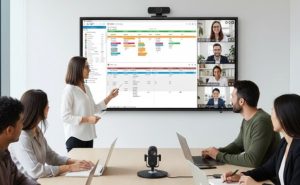
Screen size matters when selecting an interactive whiteboard. Small rooms work best with compact screens, while large meeting spaces or classrooms need bigger displays. A larger screen helps everyone see the content clearly, which is important for both education and business.
Display quality affects how images, text, and videos appear. High-definition screens show sharp details and bright colors. This feature is useful for presentations, training, and group discussions in business settings. Glare reduction and wide viewing angles also help people see the board from different spots in the room.
Compatibility and Connectivity
Compatibility ensures the interactive whiteboard works with your existing devices. Many schools and business offices use laptops, tablets, and smartphones. The board should connect easily to these devices, either wirelessly or with cables.
Connectivity options include HDMI, USB, and wireless sharing. These features allow users to display content from different sources. Reliable connections help meetings and lessons run smoothly. In business, fast sharing of documents and presentations saves time.
A table below shows common connectivity options and their uses:
| Connection Type | Typical Use Case |
|---|---|
| HDMI | Video and audio display |
| USB | File transfer |
| Wireless | Remote sharing |
Touch Performance and Software
Touch performance affects how users interact with the board. Fast and accurate touch response makes writing, drawing, and moving objects easy. Multi-touch support lets several people use the board at once, which is helpful for teamwork in business.
Software features add value to the interactive whiteboard. Look for built-in apps for note-taking, drawing, and web browsing. Cloud access and security tools are important for protecting business data. Easy-to-use software helps everyone get started quickly.
Choosing the right digital whiteboard means checking both hardware and software. Test the touch response and explore the available apps. In business, reliable software can improve productivity and support remote work.
Conclusion
Interactive whiteboards offer a powerful combination of collaboration, engagement, and digital efficiency across education, business, and training environments. As highlighted in this Interactive Whiteboard Guide their key features such as multi touch interaction wireless sharing and integrated software enable more dynamic communication and streamlined workflows. While considerations like cost setup and maintenance are important the overall value lies in improved participation and productivity. Ultimately interactive whiteboards are a strategic investment for modern organizations seeking smarter more connected ways to work and learn.